
From the Toysit archive
LeapFrog LeapPad Ultra
Look around the green-and-white LeapPad Ultra, then make a three-object picture dictionary with photographs, drawings and short captions.
The play at a glance
A little picture desk for everyday discoveries
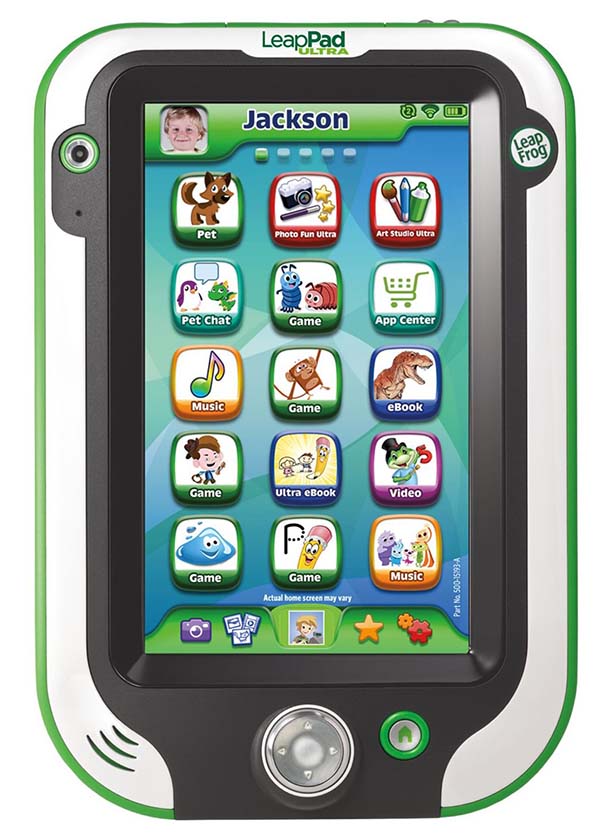
The LeapPad Ultra in Toysit’s picture has a broad green-and-white frame around a dark screen surround. A camera, a directional control and a stylus give it the look of a small creative desk. Imagine gathering three ordinary objects and turning their pictures into a dictionary made by its young author.
Notice the tools around the screen
LeapFrog’s parent guide identifies front and rear cameras, a microphone, speaker, stylus, directional pad and Home button. The original image shows a grid of colorful app icons within a substantial border, with physical controls grouped around the display.
Those different ways of making a mark suggest a useful story prompt: what would a small object say about itself? A picture can show its shape, a label can give it a name, and a sentence can explain why someone chose it.
Try a three-object picture dictionary
Ask an adult to help choose three ordinary objects suitable to handle, such as a spoon, a mitten and a favorite book. Use an already-working local photo or drawing feature on the device, or make the entire dictionary with paper and pencils.
- Make the first picture. Place one object on a plain surface and photograph it, or draw its outline. Keep names, addresses and other personal details out of the picture.
- Add a title. Say or write the object’s name. Choose a describing word for it: “shiny spoon,” “striped mitten” or “well-read book.”
- Give it a sentence. Try “This spoon helps stir my pretend soup.” The author can dictate the sentence to an adult or write it on a paper card beside the picture.
- Complete the set. Repeat with the other two objects. Put the three entries in an order the author chooses—by color, size, name or importance to the story.
Invite someone to guess an object from its sentence before revealing its picture. Then make a cover titled “Three Things I Chose,” with a small drawing of all three objects together.
Keep a paper companion
A folded sheet can hold the titles and captions even when the pictures live on a screen. It also gives the author somewhere to plan a fourth entry. Adults can handle setup and charging using the matching parent guide; follow its directions for a damaged screen or case. The paper edition is ready whenever the objects and a pencil are.
The historical record
Original Toysit coverage
The complete earlier product account and commentary are preserved below as historical coverage.
Tablet made for you - bright screen - front and back cameras - apps
Works with LeapFrog Explorer cartridges and apps, LeapFrog LeapPad Ultra accessories. Features LeapPad Ultra is built from the ground up to be ultra-tough for kids and includes 11 apps, 8GB of storage and a built-in rechargeable battery so the learning fun never ends. Play, draw and write on a 7 hi-res screen designed to respond to a kid's touch or stylus play. Take pictures and videos with front-and-back cameras. Add cool effects with Photo Fun Ultra, create colorful masterpieces with the enhanced Art Studio Ultra app, and listen to music with the built-in MP3 player. With new peer to peer games, your kids can safely play with friends using virtual pets or LeapFrog characters. Pet Chat allows kids to safely text over a local connection with safe pre-defined chat phrases and emoticons with fun sounds. With LeapSearch, powered by Zui, kids can explore Web content in a safe environment. And it's simple to take charge of their online experience with parental settings. LeapPad Ultra works with LeapFrog's library of 800+ educator-approved apps, games, eBooks, videos, music and more. Learning games draw from 2,600 skills and select games auto-level, adapting to your child's pace in subjects like reading, writing and mathematics. Play with game cartridges or download apps directly to the tablet from the Wi-Fi enabled LeapFrog App Center.
The evolution of handheld learning platforms for children has witnessed a fascinating transition over the decades. Initially, in the late 20th century, children had simple electronic learning toys like Speak & Spell, which focused on basic literacy skills. As technology advanced into the 1990s and 2000s, devices like LeapFrog's LeapPad emerged, offering more interactive experiences with touchscreens and cartridges to teach various subjects. The proliferation of smartphones and tablets in the 2010s further revolutionized the landscape, allowing for versatile apps that could cater to a wide range of learning objectives, from language acquisition to coding. These modern platforms benefited from connectivity, enabling dynamic content updates and social learning opportunities, turning handheld devices into powerful, multifaceted educational tools.
Sources and editorial notes
The six-page original LeapPad Ultra parent guide was read and visually reviewed. The older app counts, library size and web-filtering claims remain historical coverage. Current account, download and connected-service operation was not tested; an undated support alert was not treated as evidence of a present outage. The activity is an original Toysit suggestion.
- Original Toysit image — Existing same-site image reviewed and retained unchanged.
- LeapPad Ultra parent guide — All six pages visually reviewed, including controls, parent settings, setup, charging and care guidance.
- LeapFrog app troubleshooting — Official support reference for parents; listed guidance is not confirmation of current service operation.
- Original Toysit coverage — Complete historical account retained, including its original claims and wording.

Images and descriptions are retained as historical material. How Toysit covers toys.
Created for Toysit by Tabbloza — the artwork in our header.