
From the Toysit archive
Pixter Multimedia: a handheld studio for pictures and scenes
Explore Pixter Multimedia’s stylus drawing tools and turn a paper storyboard into one colorful handheld scene.
The play at a glance
A little screen for a big imagined scene
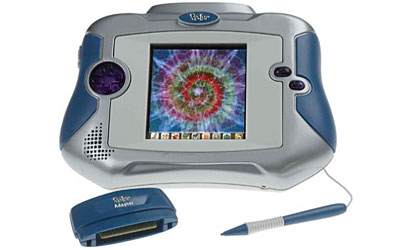
Pixter Multimedia places a drawing screen between blue side grips, with a directional pad on one side and two selection buttons on the other. A tethered stylus supplies the drawing point. The original photograph also shows a separate cartridge adapter. Imagine choosing one moment from an adventure—a character discovering an enormous footprint—and using lines, shapes and stampers to make that moment fill the screen.Choose tools for the picture
The built-in drawing choices include free drawing, shapes, color fills and stampers. Scene Starters supplies a background to develop. A player can draw a winding trail, place a character beside it and add one conspicuous object that makes a viewer wonder what happens next.
Use the intended stylus, with its screen alignment set as the guide directs. The separate adapter serves older black-and-white Pixter cartridges, whose pictures remain black and white. Cartridges are separate software; the built-in drawing tools offer a starting place for the story below.
Try a three-scene pocket story
For this original Toysit activity, keep the whole adventure on paper and give one scene the starring role on the screen.
- Draw three boxes on paper. Invent a character with one recognizable detail, such as a striped scarf or round hat.
- Sketch a beginning, a surprise and an ending. Perhaps the character follows footprints, finds a giant sleeping rabbit, then leaves it a carrot-shaped note.
- Choose the most interesting box. Use Free Draw or a suitable Scene Starter to make a version with the system’s built-in tools. A large character and one clear surprise can tell the story.
- Show the screen picture while narrating the other two moments from the paper storyboard. Let a listener suggest a different ending.
The manual’s save function holds one picture at a time; saving another replaces it. Keep the paper storyboard as the record of all three scenes, and decide which screen picture to save. A quick paper copy can preserve an earlier design before it changes.
Give the character a recurring detail
A scarf, hat or unusual silhouette makes a character recognizable across several paper adventures. Try changing the setting while keeping that detail: the same round hat might appear in a garden, a cave and a busy station. A second storyteller can invent a reason the character travels between them. The drawing gives everyone a shared starting point for telling the tale.
The historical record
Original Toysit coverage
The original product account and commentary are preserved below as historical coverage.
TFT touch screen and ergonomic controls for portable gaming and video display
Handheld, powerful creative system with more than a hundred tools, games. and activities. Streaming video capabilities. Create your own shows with cartoon creator, video creator, and scene creator software. Large TFT screen plus video and flash player. Works with all past Pixter cartridges. Brand new design includes a multi-directional D-pad and ergonomic shape. Now kids can expand their creative minds with streaming video capabilities. Watch a video on the high-performance TFT touch screen. Video software exclusively for use with the multimedia system the 2005 Pixter delivers even more popular features - video player and gaming. Play your favorite games and watch your favorite shows on Pixter, while still being able to use all of your favorite Pixter creativity features that you love - stampers, screen starters, and free draw.
Sources and editorial notes
Mattel’s J4288 silver-model support page links the 28-page English owner’s manual labeled H4651 and a one-page H4651 calibration sheet; both were read completely and visually reviewed. Their layout matches the pictured system. Built-in Scene Starters is distinct from separately sold Scene Creator and other software mentioned in the product description. Generic Color Pixter FAQs were not treated as model-specific evidence. The story activity is original editorial play; no physical testing or online service was involved.
- Original Toysit image — Existing same-site photograph reviewed and retained unchanged.
- Mattel J4288 silver Pixter Multimedia support — Product identification and official links to the following H4651-labeled documents.
- Pixter Multimedia owner’s manual (PDF) — Complete 28-page manual reviewed: tools, built-in activities, adapter, one-picture storage and care.
- Pixter stylus calibration sheet (PDF) — Complete one-page setup sheet reviewed; use with the owner’s manual.
- Original Toysit coverage — Complete original product account and historical commentary preserved.

Images and descriptions are retained as historical material. How Toysit covers toys.
Created for Toysit by Tabbloza — the artwork in our header.