
From the Toysit archive
Pixter Color
Make a line, try a stamp and save one picture on the original Pixter Color handheld, with its drawing tools and cartridge limits explained.
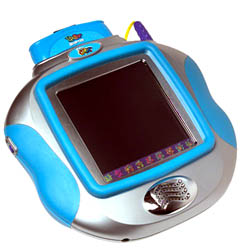
The play at a glance
Change the tool and watch the mark change
Pixter Color puts drawing tools on a self-contained handheld screen. A stylus can make a freehand line, place a stamp or erase a small part of a picture.
Begin with one drawing and change one tool at a time. The result is easier to understand when a new stamp or line style has a clear place in the picture.
Make a small picture in Free Draw
For a matching unit prepared according to its manual, choose Free Draw from the Home screen. Use the supplied drawing stylus; a regular pen or pencil can damage the screen. Start with a line and describe what it might become: a path, the edge of a house or a tree trunk.
Choose a second tool only after trying the first. Add a shape or stamp, then return to the picture and notice what changed. A scene with two or three deliberate additions is enough for a first session.
The built-in Home activities also include Scene Starters, Color by Number and Connect the Magic Dots. These provide different starting structures. Cartridge activities are separate additions and are not needed for this Free Draw exercise.
Match a tool to an intention
- Pencil
- Make a freehand mark or write a short message; compare a curved line with a straight one.
- Straight Line
- Draw a deliberate edge for a roof, path or border.
- Stamp It!
- Choose a supplied stamp and place it in the scene. Repeating it can make a row or a crowd.
- Magic Wand Eraser
- Choose the eraser option to remove part of a drawing while leaving the rest.
Erasing a small part and clearing the whole screen are different operations. Explain which one is intended before choosing it, particularly when two people are sharing a picture.
Save deliberately: there is one picture slot
The manual’s Save It! menu uses an IN file choice to save the current picture and an OUT file choice to retrieve the saved one. Saving again replaces the picture already stored. It is not a gallery of multiple drawings.
Before saving a new scene, ask whether the existing saved picture can be replaced. After saving, the drawing remains on screen; choose another activity or tool when ready to make something new.
Try a simple ending ritual: name the picture, describe one tool that helped, then decide whether to save it. The manual also puts contrast adjustment in this menu, which is a screen setting rather than a drawing effect.
Check the handheld and cartridge separately
The Color manual calls for four AA batteries and first-use stylus calibration. It also explains recalibration when the visible mark and stylus tip no longer align. Follow the illustrated procedure on pages 5 and 15 instead of pressing harder on the screen.
Original black-and-white Pixter software needs the cartridge adapter and still displays in black and white. Turn the handheld off before inserting software, as the manual directs. The adapter is for cartridges, not a power adapter.
Keep the model number with the manual and inspect an older unit for battery leakage or damage before use. These instructions should not be transferred to Pocket Pixter, Pixter Multimedia or a different handheld simply because the name is similar.
The historical record
Original Toysit coverage
The original product paragraph is preserved below. Its broad software-expansion wording is qualified in the new guide: the original manual requires an adapter for black-and-white Pixter cartridges, and those programs remain black and white. This guide concerns the Color handheld, not later Pixter systems.
Color Pixter with Color Pix Packs
It's cooler in color. The newest Pixter creativity system with more digital drawing tools, tons of creative activities, sound, music, awesome special effects, and now 128 bold and brilliant colors on the screen. Kids can draw and paint right on the touch-sensitive back-lit screen, add digital stamps and animated special effects, save, erase a lot, erase a little, play fun games with cool on-screen surprises and so much more all in full color. Built-in software port expands your Color system with the addition of any Pixter software. Pixter software sold separately in a variety of Basic, Deluxe and Color titles.
Sources and editorial notes
Reviewed October 16, 2026 using Mattel’s B7711 product record and owner’s manual B7711a-0920, which covers B7711, B7712 and C0503. The body, stylus, tool strip and cartridge arrangement correspond to the archived photograph. Manual pages 2–5, 6–14 and 15–17 establish the adapter, calibration, drawing, single-picture save and care details. A cartridge pictured with the toy does not establish what every package included. No physical handheld was tested.
- Mattel: Pixter Color B7711 — Manufacturer identification and linked base-unit manuals.
- Fisher-Price: Pixter Color owner’s manual (PDF) — Base handheld instructions, including tool choices, one-picture storage, cartridge adapter and stylus calibration.
Images and descriptions are retained as historical material. How Toysit covers toys.
Created for Toysit by Tabbloza — the artwork in our header.